Tutorial: Coding Agent
Already using Claude Code or Codex? This tutorial shows you what Goalrail adds on top: a web UI with file editing and inline comments, mobile access, session sharing, and the ability to fork or switch agents mid-conversation. None of this is possible with a native coding agent alone.
Time: 5 minutes. Everything runs locally.
1. Start your coding agent
goalrail claude    # Claude Code
goalrail codex     # Codex
Pick whichever you already use. Either command launches the coding agent
in your terminal and opens a web UI at http://localhost:6767. Both are
connected to the same session and stream output in real time.
2. Give it a task
Ask it to do something in your project. For example:
Write a Python function that reads a CSV file and returns the top 5 rows sorted by the second column.
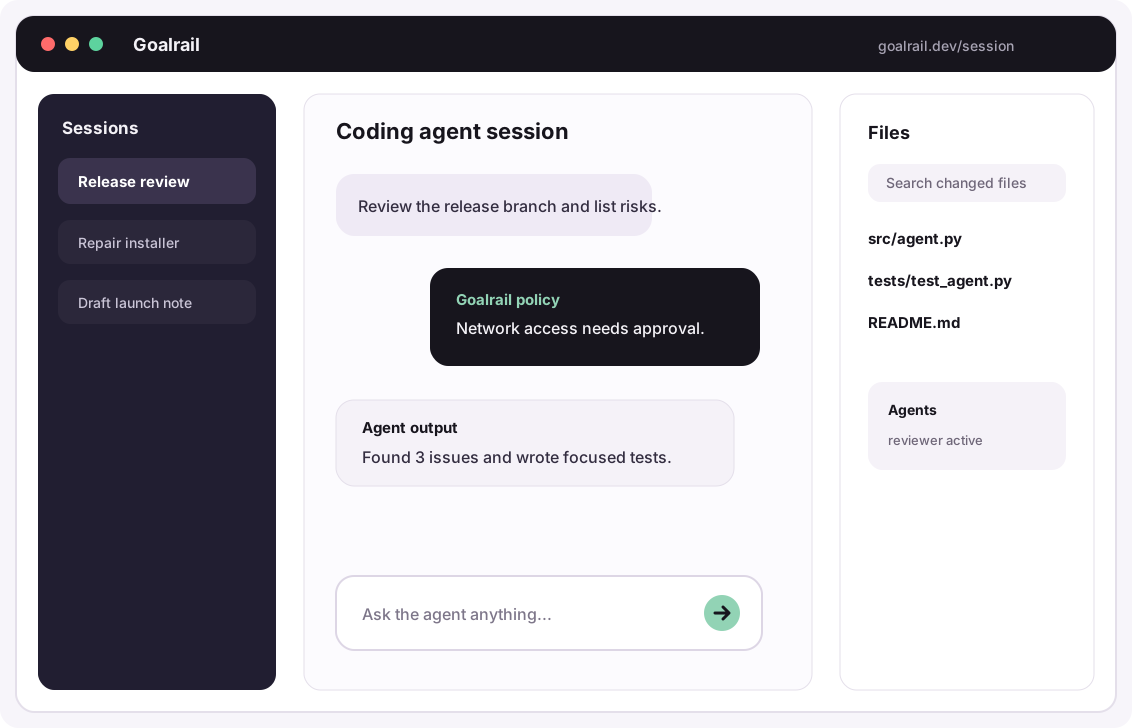
Watch it work in the terminal. Then follow along in the web UI or the desktop app. Terminal, browser, and desktop app are three views of the same session: type in one, and the others update in real time.
Open http://localhost:6767 in your browser. The web UI shows your
conversation on the left and a right panel with four tabs: Files
(browse and edit files the agent created), Agents (sub-agents if any),
Shells (running terminals), and Todos. Everything syncs with the
terminal in real time.
3. Try native Goalrail features
Now that your agent has produced some output, try these features in the web UI:
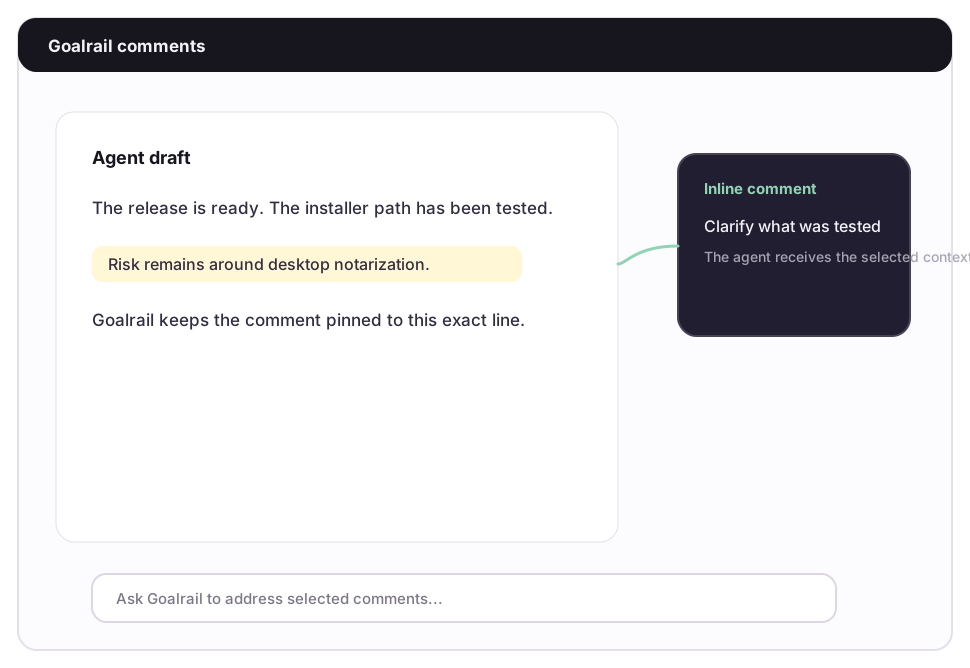
Comment on the agent's work
Click on a specific part of the agent's output and leave an inline comment like "make this more concise" or "use pandas instead". The agent sees exactly what you're referring to and revises it. No need to describe the location in chat.
Edit files directly
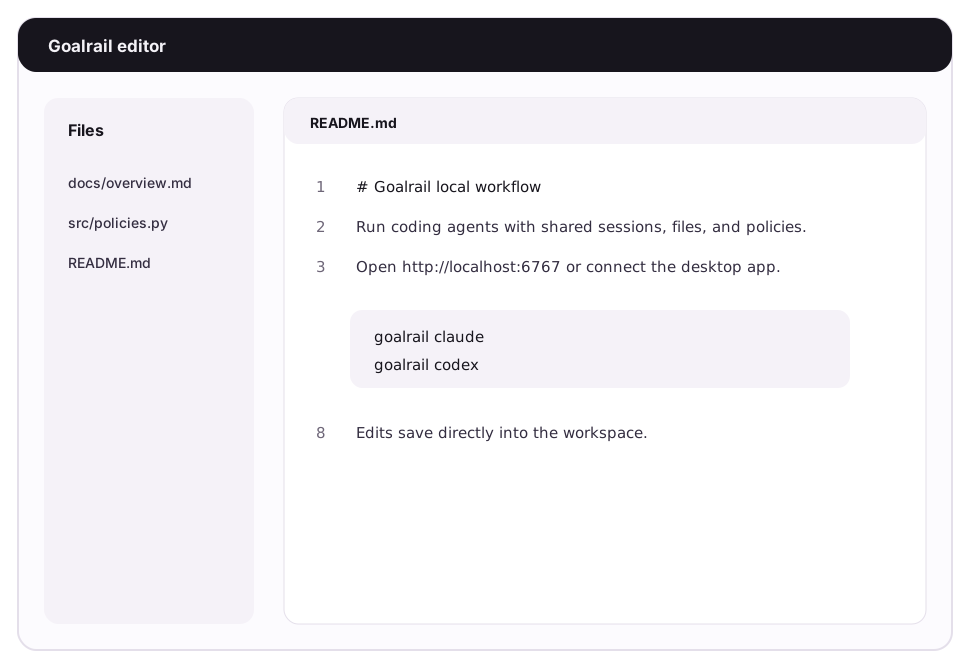
Open any file the agent created in the built-in editor. Make changes yourself with syntax highlighting. The agent can see your edits and continue from there.
Paste an image
Drag a screenshot, mockup, or diagram into the chat. The agent sees it alongside your text. Try pasting a screenshot of a UI bug or a design spec.
Fork a session and switch agents
Fork your current session to try a different approach without affecting the original. The fork copies the full conversation history up to that point, so you can experiment freely.
Sessions in Goalrail belong to you, not to a specific agent, so a fork doesn't have to continue with the agent it started with. Started in Claude Code? Fork the session and continue the fork with Codex (or vice versa). The new agent picks up the full conversation history and keeps going, so you can compare how each one tackles the same problem from the same starting point.
4. Add a policy in plain language
Type this into the chat:
Don't send any PII like emails or credit card numbers to the model. Ask me first if a message contains some.
The agent attaches Goalrail's built-in PII policy to the session. From now on, every outgoing model request is scanned, and anything containing PII is held for your approval before it leaves your machine. Try it: paste a log file with a fake email address and watch the policy step in. This is enforcement at the platform layer, something no coding agent can do on its own. Cost budgets, access controls, and more work the same way. See Contextual Policies.
What's next
- Try Polly to see multi-agent coding orchestration in action.
- Collaborate from anywhere to deploy a server and share sessions with teammates.
- Build a custom agent with your own tools, prompts, and policies.